Gmail templates are pre-written emails you save once and reuse instead of retyping the same message. Gmail has a built-in feature called Templates (formerly canned responses) that lets one account store and insert saved replies, but every template stays locked inside that one inbox. Typedesk is a shared response system that fixes this: it lets your whole team save approved Gmail templates in a single library and insert them with a click inside Gmail and anywhere else you write, so everyone replies the same consistent, approved way and you update a template once for the entire team.
This guide covers both: how to save email templates in Gmail using the native feature, and how to give your whole team one consistent, shared library of reply templates with Typedesk that stays the same no matter who hits send.
How do you save email templates in Gmail?
You save a template in Gmail by enabling Templates in Settings, then saving any drafted email as a reusable template. The feature is built into Gmail on the web at no extra cost, and it stores your saved replies inside your own account.
Here is how to turn it on and save your first Gmail template.
- Open Gmail on the web and click the gear icon, then See all settings.
- Go to the Advanced tab, find Templates, and select Enable. Click Save Changes.
- Click Compose to start a new email, then type the message you want to reuse.
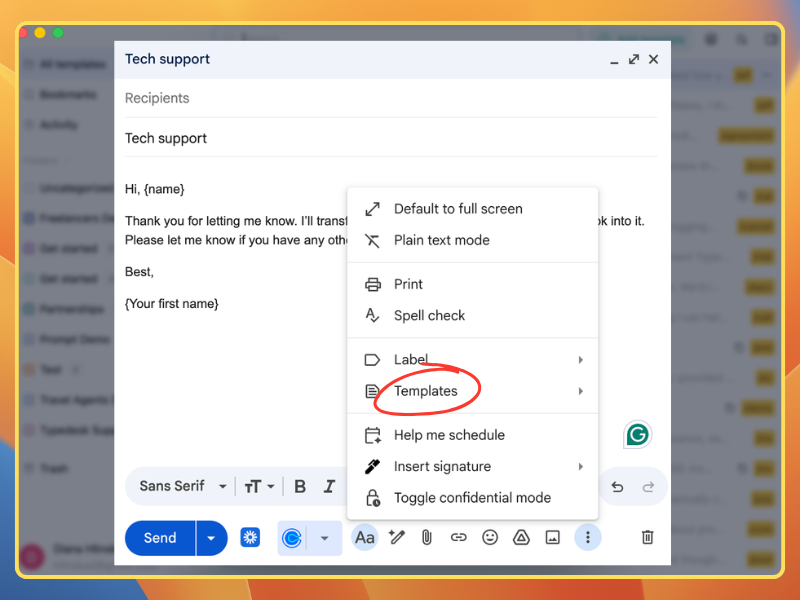
- Click the three-dot menu at the bottom right of the compose window, hover over Templates, then Save draft as template, and Save as new template.
- Give the template a clear name so you can find it later, and save.
- To use it, open a new email, click the three-dot menu, hover over Templates, and pick your saved template. Gmail drops the full text straight into the message.
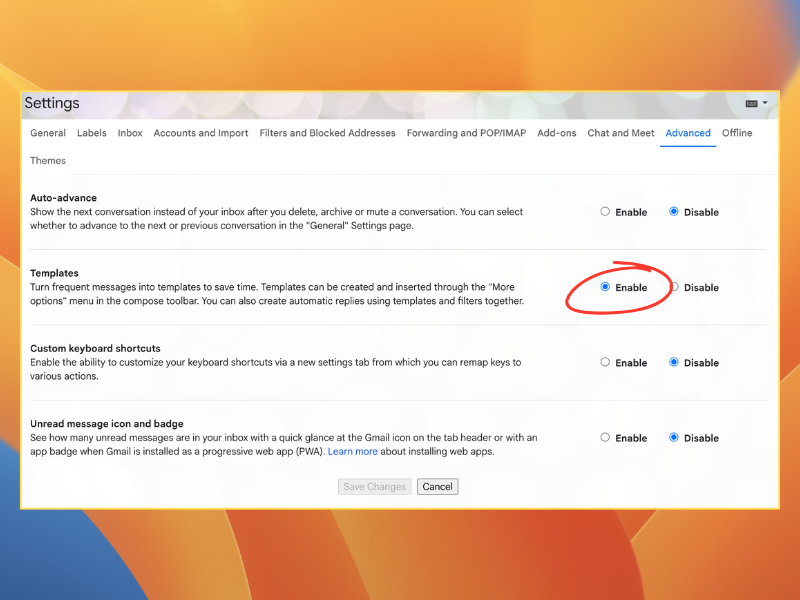
That is the whole native flow. Once enabled, your saved Gmail templates live under that same three-dot menu every time you compose or reply.
What are Gmail canned responses?
Gmail canned responses are the same thing as Gmail templates. Canned responses was the original name Google used for saved replies; the feature was renamed Templates and moved out of Labs into core Gmail settings. If you are searching for gmail canned responses, you are looking for the Templates feature described above.
The terminology still matters because many teams use canned responses to mean any reusable, approved reply, not just the native Gmail feature. A canned response in that broader sense is any pre-written message a team reuses to answer repeated questions consistently. Gmail's built-in Templates is one way to store them. A shared response system is another, and it solves the part Gmail does not.
Why native Gmail templates fall short for teams
Native Gmail templates fall short for teams because they are personal, not shared. Each template lives inside one Gmail account, so there is no single approved version everyone pulls from. When five people each save their own copy of the refund reply, you get five slightly different refund replies, and that is a consistency problem, not a typing problem.
Inconsistent replies are a coordination failure. The information leaves your company looking different depending on who answered, and customers notice when the policy they were quoted last week does not match the one they get today. Native Gmail templates also cap each account at 50 templates, they do not sync to a teammate's inbox, and updating wording means every person editing their own copy by hand and hoping nobody misses it.
There is also the reach problem. Gmail templates only work inside Gmail on the web. The moment your team replies from a helpdesk, a CRM, a chat tool, or a desktop mail app, those saved templates are gone. A shared response library follows your team wherever they write, which is why teams that care about consistency move beyond the native feature.
A real example: three agents, three refund answers
Picture a 10-person support team at a B2B SaaS company, all working in Gmail. There is no shared library, so each agent saved their own version of the refund reply months ago. One promises a refund in 5 business days, another says 7 to 10, and a third forgets to mention the restocking policy at all.
None of them are wrong on purpose. They are each using their own Gmail template, saved at a different time, never updated together. When the finance team changes the refund window, the announcement goes out in Slack, and maybe half the agents update their personal templates. The other half keep sending the old wording for weeks.
That is the gap native Gmail templates leave open. The fix is not asking everyone to type faster or to remember the new policy. The fix is one approved template the whole team shares, edited in one place, so the next reply is automatically current.
How to create shared, consistent reply templates for your whole team
You create shared Gmail templates by storing your replies in a team response library instead of individual inboxes, so everyone inserts the same approved version. Typedesk does this on top of Gmail and everywhere else your team writes. Here is how to set it up.
- List your most-used replies. Pull the 20 to 50 messages your team sends most often in Gmail, since those repeated replies deliver the biggest consistency gain first.
- Write the one approved version of each. Agree on the wording, tone, and policy details once, so there is a single source of truth instead of ten personal copies.
- Save them in Typedesk. Add each reply to a shared library that your whole team can access, rather than saving them inside one person's Gmail.
- Add variables for the parts that change. Use fields like customer name, date, or a dropdown so one template adapts to each email while the approved core stays consistent.
- Install the Typedesk Chrome or Firefox extension. Your shared templates become available directly inside Gmail, inserted with a keyboard shortcut or a click.
- Share the library with your team. Everyone pulls from the same approved responses, so the refund reply is identical whether it comes from a new hire or a manager.
- Update once, and everyone is current. When a policy changes, edit the template in one place and the whole team sends the new version the next time they reply, no manual copy-editing across inboxes.
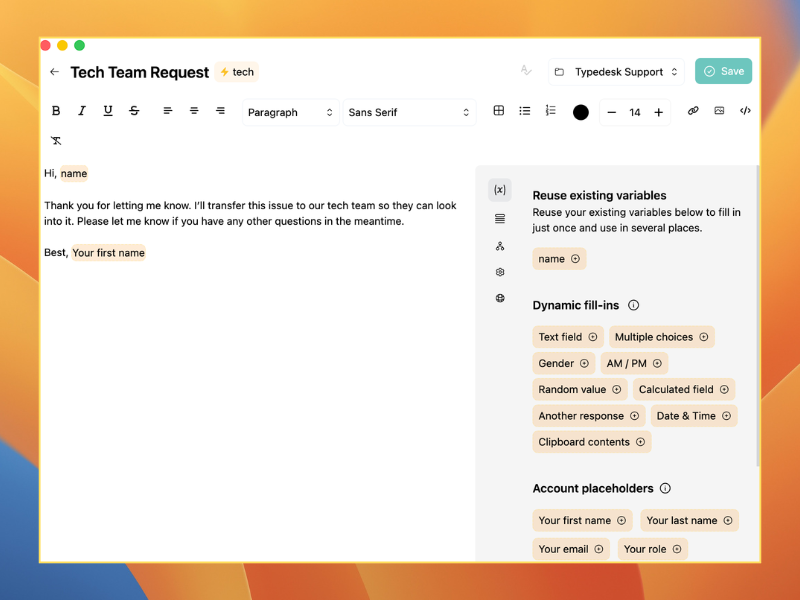
This is the difference between saving email templates in Gmail for yourself and running a shared response library for your team. The first saves you typing. The second keeps the whole team consistent.
Gmail templates vs a shared response system
The table below compares Gmail's native Templates feature with Typedesk, a shared response system that works inside Gmail and beyond it.
| Feature | Native Gmail Templates | Typedesk |
|---|---|---|
| Where templates live | Inside one Gmail account | Shared team library |
| Shared across the team | No, each account is separate | Yes, one approved library for everyone |
| Update once for everyone | No, each person edits their own copy | Yes, edit once and the whole team is current |
| Template limit | Capped at 50 per account | Unlimited templates |
| Variables and dynamic fields | No | Yes, names, dates, dropdowns, clipboard, AI prompts |
| Works outside Gmail | No, Gmail web only | Yes, browser, desktop apps, CRM, helpdesk, chat |
| Keyboard shortcuts | No native shortcut to insert | Yes, insert with a shortcut |
| Cost | Free, built into Gmail | Free plan, Premium at $5/user/month billed annually |
| Best for | A solo user with a handful of saved replies | Teams that need consistent, shared, approved replies |
Native Gmail Templates is genuinely fine if you are one person with a few saved replies you never share. The moment more than one person needs to send the same approved answer, or you reply from anywhere other than Gmail on the web, a shared system is the better fit.
How many templates can Gmail store?
Gmail's built-in Templates feature caps each account at 50 saved templates. For one person that is often enough. For a team that answers dozens of different repeated questions, with separate replies for billing, onboarding, refunds, technical issues, and more, 50 per person fills up fast, and none of them are shared.
This is one of the clearest reasons teams outgrow the native feature. A shared response library removes the cap and, more importantly, removes the duplication, since the team maintains one approved set instead of every person hoarding their own 50.
Beyond replies: signatures and out-of-office
Reply templates are the core use, but the same logic applies to other repeated Gmail text. A consistent email signature across the team keeps branding uniform, and our guides on how to add a signature to Gmail and Gmail signature template tips cover that in detail.
Out-of-office and auto-reply messages are another spot where saved templates help, so the wording stays professional and on-brand every time. The better canned responses with Gmail guide shows how reusable replies fit into a real Gmail workflow.
Frequently asked questions
How do I save an email template in Gmail?
Enable Templates under Settings, Advanced, then compose your message, open the three-dot menu in the compose window, hover over Templates, and choose Save draft as template, Save as new template. To reuse it, open the same Templates menu and select your saved template.
Are Gmail templates and canned responses the same thing?
Yes. Canned responses was the original name for the feature, which Google later renamed Templates. They refer to the same built-in Gmail tool for saving and reusing email replies.
Can I share Gmail templates with my team?
Not with the native feature. Gmail templates are tied to a single account and cannot be shared. To give your whole team the same approved replies, you need a shared response library like Typedesk for Gmail, which everyone can access and insert from inside Gmail.
How many templates can I save in Gmail?
Gmail's native Templates feature is limited to 50 templates per account. A shared response system like Typedesk lets you save unlimited templates and share them across the team.
Do Gmail templates work outside of Gmail?
No. Native Gmail templates only work in Gmail on the web. If your team also replies from a helpdesk, CRM, chat tool, or desktop app, you need a system like Typedesk that carries your shared templates everywhere you type.
How do teams keep their email replies consistent?
Teams keep replies consistent by storing one approved version of each message in a shared library, rather than letting each person save their own copy. When the wording is updated in one place, everyone sends the current version automatically, so customers get the same answer no matter who replies.
Typedesk gives your team a shared library of approved templates you can insert right inside Gmail and anywhere else you write, so the right reply is always the easy one to send. You can try Typedesk free and build your first set of shared Gmail templates in a few minutes, no credit card required.