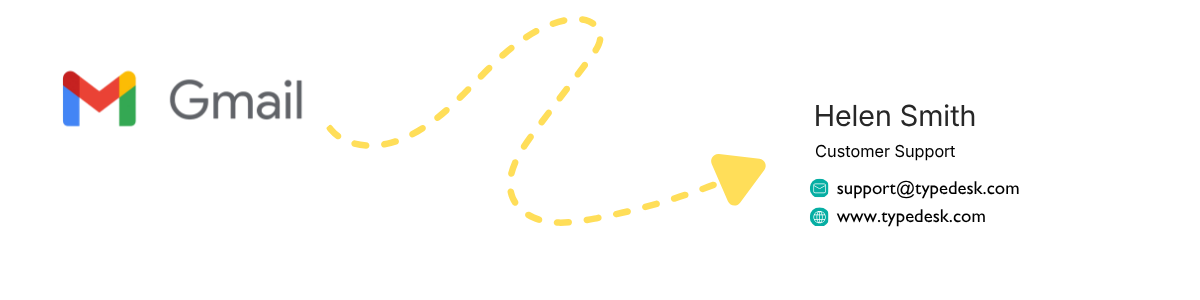
To add a signature in Gmail, open Settings, go to the General tab, scroll to the Signature section, click Create new, type or paste your signature, and click Save Changes. Your signature can include your name, title, company, contact details, links, and an image. You can set it to appear on new emails, replies, or both, and you can create more than one signature for different purposes.
This guide covers the full process on desktop and mobile, how to use multiple signatures, and how teams keep everyone's signature consistent with a shared signature template.
How do you add a signature in Gmail on desktop?
You add a signature in Gmail on desktop through Settings, General, Signature. The signature editor lets you format text, add links and images, and choose when the signature appears. Here is the full process.
- Open Gmail on the web, click the gear icon in the top right, then See all settings.
- Stay on the General tab and scroll down to the Signature section.
- Click Create new, give the signature a name for your own reference, and click Create.
- Type or paste your signature in the editor. A professional signature usually includes your full name, job title, company, phone number, and any links you want to share.
- Format it using the toolbar. You can bold text, change the font, add a hyperlink with the link icon, or insert a logo or headshot with the image icon.
- Under Signature defaults, choose which signature appears on new emails and on replies and forwards. You can set different signatures for each.
- Scroll to the bottom and click Save Changes. Your signature now appears automatically based on the defaults you set.
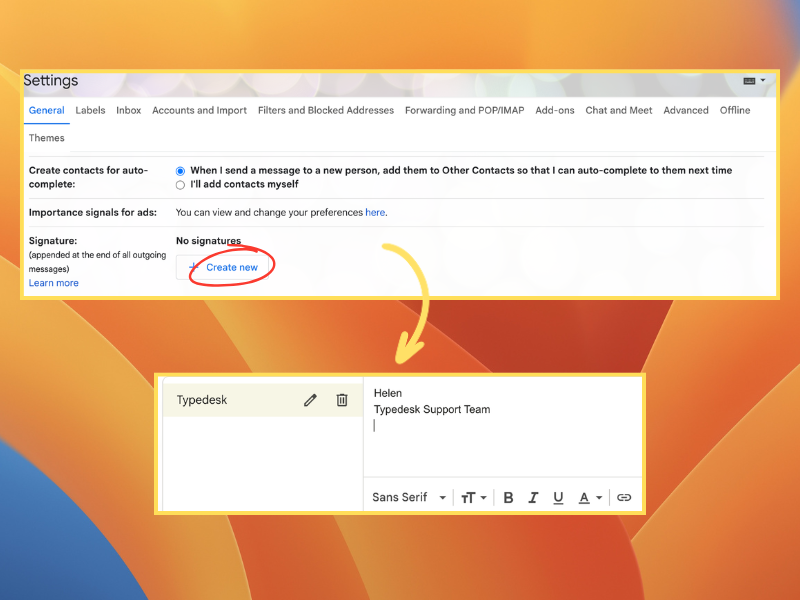
Gmail signatures can be up to 10,000 characters, so there is room for images and formatting, though shorter signatures tend to look cleaner and load reliably for every recipient.
How do you add a signature in the Gmail mobile app?
You add a signature in the Gmail mobile app through the app's own settings, and it is separate from your desktop signature. The mobile signature is plain text only, with no images or rich formatting. Here is how to set it.
- Open the Gmail app on Android or iOS and tap the menu icon, then Settings.
- Select the account you want to set a signature for.
- On Android, tap Mobile Signature. On iPhone or iPad, tap Signature settings and turn on the mobile signature.
- Type your signature and confirm. It will now be added to emails you send from that device.
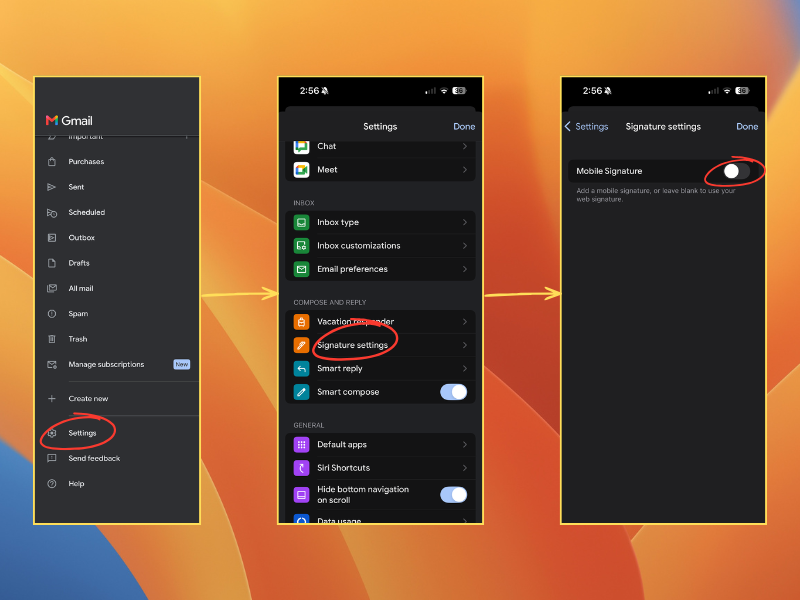
Because the mobile signature is separate and plain text, many people keep it short, such as their name and company, and rely on the richer desktop signature for full contact details.
Can you have multiple signatures in Gmail?
Yes. Gmail lets you create multiple signatures under the same account and switch between them. This is useful if you send different kinds of email, for example one signature for sales outreach and another for support replies, or separate signatures for different addresses connected to your account.
To add another, repeat the Create new step in the Signature section and save. When you write an email, you can swap signatures from the pen or Insert signature icon in the compose toolbar, which inserts any saved signature into the message on demand. You can also set which signature is the default for new emails versus replies under Signature defaults.
Why do teams need consistent email signatures?
Teams need consistent email signatures because a signature is part of your brand, and ten people formatting their own version creates ten slightly different looks. One person bolds the company name, another uses a different font, a third has an outdated job title or an old phone number. That inconsistency is a coordination problem, not a design problem, and Gmail's native signature settings do not solve it because each signature is configured by each person inside their own account.
This is the same gap that shows up with reply text. The same way a shared library keeps Gmail templates and canned responses consistent across a team, a shared signature template keeps everyone's sign-off on brand. The wording and layout are approved once, and every teammate uses the same version.
How to keep your team's signatures consistent with Typedesk
You keep team signatures consistent by storing one approved signature template in a shared library, with variables for the details that change per person. Typedesk does this on top of Gmail, so the layout stays uniform while each teammate's name and title fill in automatically. Here is how to set it up.
- Design one approved signature. Agree on the layout, fonts, logo, and links once, so there is a single source of truth.
- Add dynamic variables for the personal parts. Use fields for name, job title, phone, and email so one template fits everyone.
- Save it in Typedesk and share it with your team. Everyone pulls from the same approved signature instead of building their own.
- Insert it where you write. With the Typedesk Chrome or Firefox extension, the shared signature drops into Gmail and anywhere else your team sends email.
- Update once when something changes. A new logo or address is edited in one place, and the whole team is current.
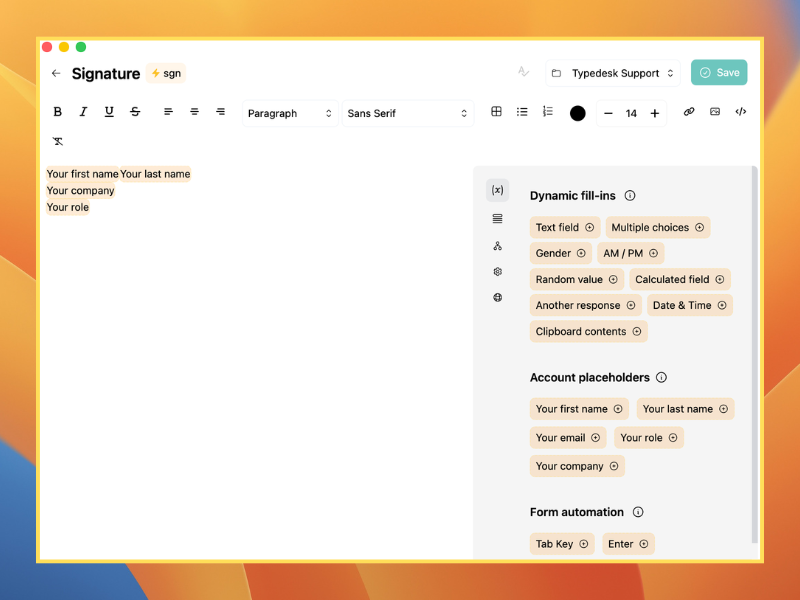
This is also where signatures connect to the rest of your communication. The same shared response library that holds your signatures can hold your most-used replies, so both stay consistent. For layout and wording ideas, our guide on Gmail signature template tips goes deeper.
Gmail native signatures vs a shared signature template
The table below compares Gmail's built-in signature feature with a shared signature template in Typedesk.
| Feature | Gmail native signature | Typedesk |
|---|---|---|
| Set up your own signature | Yes | Yes |
| Share one approved signature with a team | No, each person sets their own | Yes, one shared template |
| Personalize per teammate automatically | No | Yes, with name, title, and contact variables |
| Update everyone at once | No, each person edits their own | Yes, edit once and the team is current |
| Works outside Gmail | No, Gmail only | Yes, browser and desktop apps |
| Rich formatting and images | Yes, on desktop | Yes |
| Best for | One person managing their own signature | Teams keeping signatures and replies consistent |
Gmail's native signature is perfectly good for one person. The shared template matters once more than one person needs to look the same.
Common questions
How do I add a signature in Gmail?
Open Settings, go to the General tab, scroll to the Signature section, click Create new, name and write your signature, choose when it should appear under Signature defaults, then click Save Changes at the bottom of the page.
Why is my Gmail signature not showing up?
The most common reasons are that you did not click Save Changes, or you did not set the signature as the default for new emails and replies under Signature defaults. Check that the correct signature is selected for both, and that you are editing the right account if you have several.
How do I add a signature to the Gmail mobile app?
Open the Gmail app, tap the menu, then Settings, choose your account, and set the Mobile Signature (Android) or turn on Signature settings (iPhone and iPad). The mobile signature is plain text and separate from your desktop signature.
Can I have more than one signature in Gmail?
Yes. You can create multiple signatures under one account, set different defaults for new emails and replies, and switch between them using the Insert signature icon in the compose window.
How do teams keep email signatures consistent?
Teams keep signatures consistent by using one approved signature template stored in a shared library, with variables for each person's details. Tools like Typedesk let you share that template so everyone's signature looks the same and updates in one place.
How long can a Gmail signature be?
A Gmail signature can be up to 10,000 characters, which is more than enough for text, links, and an image. Shorter signatures usually look cleaner and display more reliably across email clients.
Typedesk gives your team a shared library of approved signatures and replies you can insert right inside Gmail and anywhere else you write, so everyone stays on brand. You can try Typedesk free and set up your first shared signature in a few minutes, no credit card required.