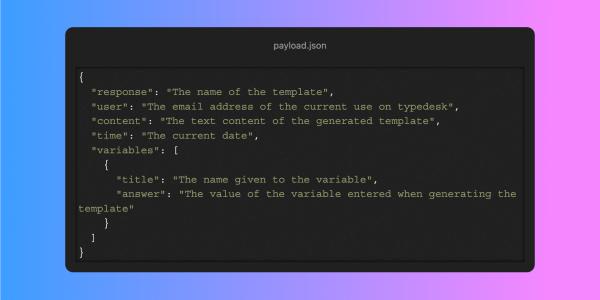
To add a signature in classic Outlook for Windows, open a new email and select Signature > Signatures. In New Outlook and Outlook on the web, go to Settings > Accounts > Signatures. From there you write, format, and save the signature, then choose when it appears. This guide also covers changing or editing a signature you already have, adding emojis to your emails, creating a reusable email template, and how teams keep every signature and template consistent with a shared library in Typedesk.
How Do You Add a Signature in Outlook?
You add a signature in Outlook through the Signatures settings: in classic Outlook for Windows you open them from a new email with Signature > Signatures, and in New Outlook and Outlook on the web you go to Settings > Accounts > Signatures. Both let you write, format, and save a signature, then choose when it appears. Here is the full process for each.
Desktop (classic Outlook for Windows):
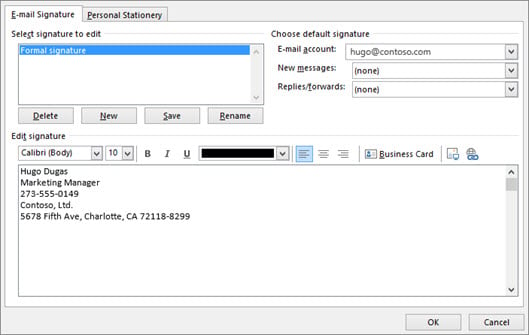
- Open a new email, go to the Message tab, and select Signature > Signatures. (You can also reach the same dialog from File > Options > Mail > Signatures.)
- Click New, name the signature, and select OK.
- Type your signature in the editor. Your full name, job title, company, phone number, and email are the essentials.
- Use the toolbar to format text, add a hyperlink, or insert a logo or headshot with the image icon.
- Under Choose default signature, pick which signature is used for new messages and for replies and forwards.
- Select OK to save.
New Outlook and Outlook on the web:
- Select Settings (the gear icon in the top right), then go to Accounts > Signatures.
- Click New signature, give it a name, and type or paste your signature into the editor box.
- Under Select default signatures, choose which signature appears on new messages and on replies and forwards.
- Click Save.
Outlook signatures can hold images and hyperlinks, but a shorter signature tends to render more reliably across the different email clients your recipients use.
How Do You Change or Edit an Existing Signature in Outlook?
You change or edit a signature in Outlook from the same Signatures settings you used to create it: in classic Outlook for Windows, open a new email and select Signature > Signatures (or File > Options > Mail > Signatures); in New Outlook and Outlook on the web, go to Settings > Accounts > Signatures. Select the existing signature and edit the text directly, there's no need to delete it and start over.
- Open Signatures the same way you did to create it.
- Select the signature you want to change from the list on the left (desktop) or from the list of saved signatures (web).
- Edit the text, formatting, links, or image directly in the editor box.
- Confirm the correct signature is still set as the default for new messages and for replies and forwards.
- Click Save (web) or OK (desktop).
If you manage signatures for a team, this is where the native tool gets harder to scale: by default, each edit only updates the signature inside that one person's Outlook account, so a title change or new phone number has to be repeated in every account. Microsoft 365 admins can push an organization-wide signature through Exchange mail-flow rules, but that's an IT task, not something each teammate can manage. More on a simpler shared approach in the Typedesk section below.
How Do You Add Emojis in Outlook?
You add emojis in Outlook using the emoji picker built into your operating system, while Outlook on the web has its own emoji control in the compose window. On Windows, press Windows key + . to open the picker. On Mac, press Control + Command + Space to open the Character Viewer. In Outlook.com, use the smiley face icon in the compose window.
- Windows (classic desktop or web): Place your cursor where you want the emoji, press Windows key + ., search or browse the picker, then select an emoji to insert it.
- Mac (desktop): Place your cursor in the message, press Control + Command + Space to open the Character Viewer, then double-click an emoji to insert it.
- Outlook on the web: Click the smiley face icon at the bottom of the compose window to open Expressions, then pick an emoji from the panel.
One word of caution: a single emoji in a subject line is unlikely to trigger a spam filter by itself, but excessive emojis or punctuation can make a message look spammy. Emoji appearance can also vary between operating systems and email clients, so they tend to work better in casual internal email or marketing sends than in first-touch business correspondence.
How Do You Create an Email Template in Outlook?
Outlook has a few different template tools, and they are not the same feature. My Templates stores named snippets for the message body. Mail Templates saves a fuller email, including the subject, recipients, body, and attachments. Quick Parts stores reusable blocks of text or formatting, mainly in classic Outlook. And classic Outlook can also save a complete message as an .oft template file. My Templates and Mail Templates require a qualifying Microsoft 365 subscription, and My Templates may be unavailable if your organization disables add-ins.
My Templates (New Outlook and Outlook on the web):
- Click New Mail to start a new message.
- On the Message tab (or Insert > Apps), select My Templates to open the templates pane.
- Click + Template.
- Add a title and type the template content.
- Click Save. The snippet is now available from the same pane in any new message.
Quick Parts (classic desktop Outlook):
- In a new email, type the content you want to reuse.
- Select the text, go to Insert > Quick Parts, and choose Save Selection to Quick Part Gallery.
- Name the Quick Part and select OK.
- To reuse it, place your cursor in a new email, go to Insert > Quick Parts, and select the saved entry.
If you want a complete email saved for reuse, use Mail Templates in New Outlook (save an email as a template from the Message ribbon) or save an .oft file in classic Outlook through File > Save As > Outlook Template. Quick Parts and My Templates are faster for short, frequently reused blocks of text.
Why Do Outlook Signatures and Templates Drift Across a Team?
By default, Outlook signatures and templates are generally personal to an individual user's account, mailbox, or local Outlook profile rather than centrally managed for the team. Outlook's standard personal signature and template settings don't give you a simple, centrally managed library that works consistently for a whole team. Some sharing is possible through shared mailboxes, distributed templates, or Microsoft 365 administrator rules, but the setup and cross-platform behavior are limited. Left to the defaults, ten people on the same team end up with ten slightly different signatures and ten versions of the same reply, whether that's a refund policy note or a standard project update. That's a coordination problem, not a formatting problem.
Signature drift happens even without a team involved. Mailtrap's research on email signature trends found that 31.6% of professionals update their own signature only once every few years, which means an old job title, a disconnected phone number, or outdated wording can sit in outgoing email for a long time before anyone notices. Multiply that across a team of separate Outlook accounts, and the drift compounds.
The fix is the same one that works for reply text: one approved version, stored somewhere everyone pulls from instead of everyone typing their own. That's the idea behind a canned response, and it's the same idea behind a shared signature template: the wording and layout get approved once, and every teammate uses that same version.
How Does Typedesk Work in Outlook?
Typedesk works in Outlook as a text expander: you write your signature, reply, or template once inside Typedesk, assign it a short shortcut, then type that shortcut into an Outlook email to expand the full content instantly. Unlike Outlook's own Signatures, My Templates, or Quick Parts, Typedesk templates live in one shared library your team pulls from, not rebuilt separately by every person.
- Install the Typedesk text expander desktop app to use text shortcuts inside classic or New Outlook and other desktop applications. For Outlook on the web, you can also use the browser extension, although shortcut-based expansion requires the desktop app.
- Create a template for a signature, a common reply, or anything else you send often, and give it a short shortcut.
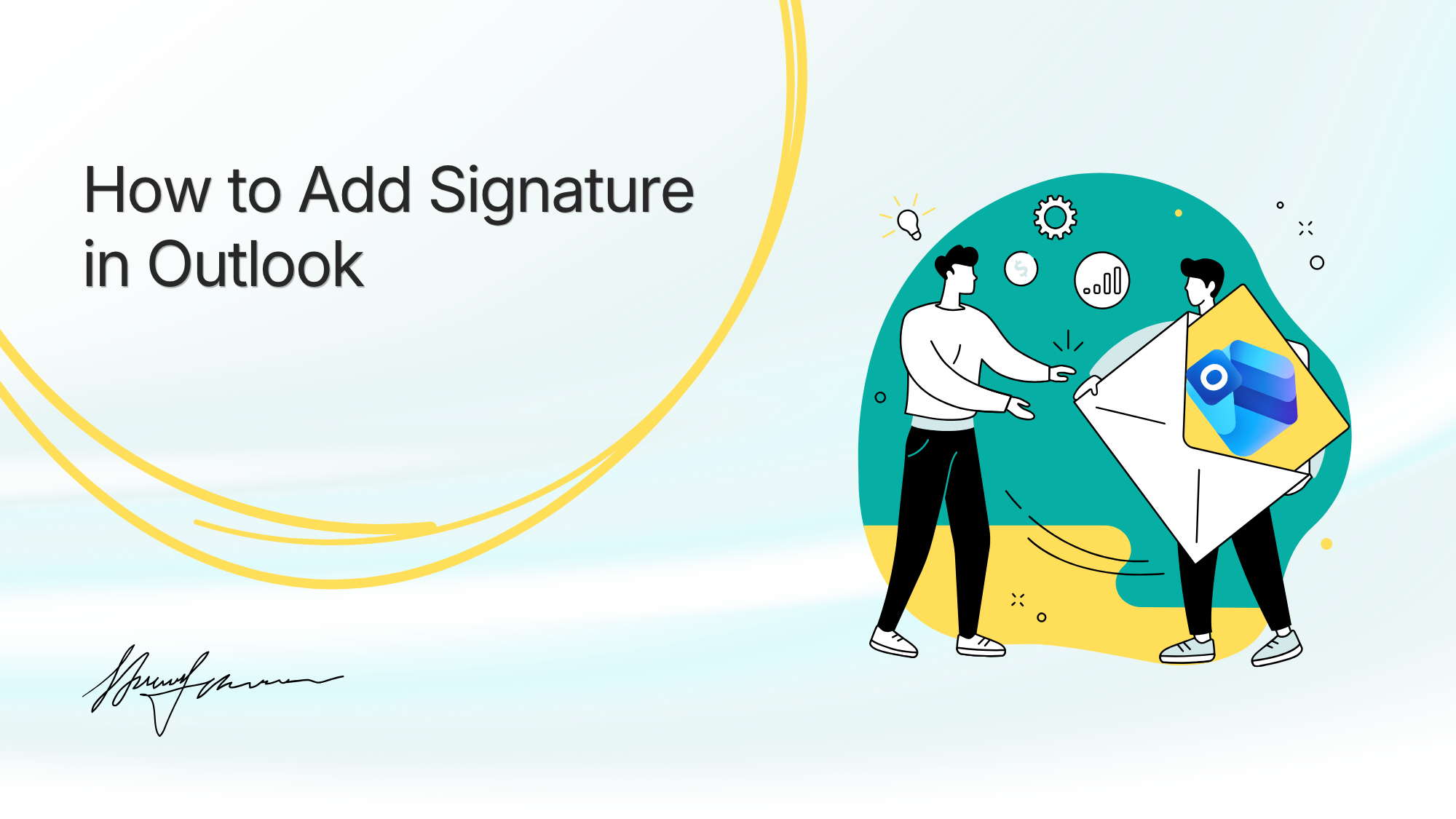
- Add variables and account placeholders for the parts that change per person or per email, like name, job title, or a customer's details, so one template fits everyone.
- Open Outlook, place your cursor in a new email, and type your configured trigger character, often /, %, or :, followed by the shortcut. Typedesk expands the full signature or reply in place.
- Place the template in a shared folder and give the appropriate teammates access, so everyone uses the same approved version. When the template is edited, everyone with access to that folder gets the updated version.
This works the same way in Gmail, your help desk, and most applications and websites where pasted text is supported, so the Outlook templates your team builds don't stay stuck inside Outlook.
Outlook's Native Tools vs Typedesk
| Feature | Outlook native (Signatures, My Templates, Quick Parts) | Typedesk |
|---|---|---|
| Set up your own signature or template | Yes | Yes |
| Share one approved version with a team | Limited, possible through shared mailboxes, distributed templates, or admin-managed rules | Yes, one shared library |
| Works the same way in Gmail, Zendesk, Slack, etc. | No, Outlook only | Yes, in most apps and sites where text can be pasted |
| Insert with a custom shortcut | Limited, Quick Parts uses menus, not shortcuts | Yes, type your trigger character plus your shortcut |
| Personalize per teammate | Limited | Yes, using account placeholders and variables |
| Update everyone at once | Limited, possible with admin-managed signatures or specifically configured shared-mailbox templates | Yes, edit once and everyone with access to the shared folder gets the updated version |
| Best for | One person managing their own Outlook | Teams keeping signatures, templates, and replies consistent everywhere |
Outlook's native tools are perfectly good for one person managing their own account. A shared template matters once more than one person needs to sound the same.
Common Questions
How do I add a signature in Outlook?
In classic Outlook for Windows, open a new email and select Signature > Signatures, click New, write and format your signature, then set it as the default for new messages or replies. In New Outlook and Outlook on the web, go to Settings > Accounts > Signatures, create a new signature, and choose it as your default.
How do I change my signature in Outlook?
Open the same Signatures settings you used to create it, Signature > Signatures (or File > Options > Mail > Signatures) in classic Outlook, or Settings > Accounts > Signatures in New Outlook and the web, select the existing signature, and edit the text, formatting, or image directly.
How do I edit an Outlook signature without starting over?
Select the existing signature from the list in Signatures settings and edit it in place. You don't need to delete it and create a new one, Outlook saves your changes to the same signature.
How do I add emojis in Outlook?
On Windows, press Windows key + . to open the emoji picker. On Mac, press Control + Command + Space to open the Character Viewer. In Outlook on the web, click the smiley face icon at the bottom of the compose window.
How do I create an email template in Outlook?
Use My Templates in New Outlook or Outlook on the web, under the Message tab, then + Template, or use Quick Parts in classic desktop Outlook by selecting your text and choosing Insert > Quick Parts > Save Selection to Quick Part Gallery. To save a complete email with recipients and attachments, use Mail Templates in New Outlook or an .oft file in classic Outlook.
What's the difference between Quick Parts, My Templates, and Mail Templates in Outlook?
Quick Parts stores reusable blocks of text or formatting in classic Outlook. My Templates stores named message-body snippets across supported Outlook versions. Mail Templates can save a more complete email, including recipients, subject, body, and attachments. My Templates and Mail Templates require a qualifying Microsoft 365 subscription.
How do teams keep Outlook signatures and templates consistent?
Teams keep signatures and templates consistent by storing one approved version in a shared library instead of letting each person build their own inside Outlook. Tools like Typedesk let you save that version once, add variables for the details that change per person, and share it so every teammate's Outlook email matches.
Typedesk gives your team one shared library of signatures, templates, and replies you can insert directly inside Outlook and most other apps and websites where you can paste text, so nothing drifts between accounts. You can try Typedesk free and set up your first shared template in a few minutes, no credit card required.